
The Ultimate Guide to Running LLMs Locally with Ollama
Run the world’s most powerful AI on your own hardware; no cloud, no costs, total privacy.

What If You Could Run AI on Your Own Laptop?
No API keys. No monthly bills. No internet connection required.
That sounds like a fantasy, but it’s not. In 2024, running a powerful AI model entirely on your own machine went from a niche research project to something any developer can do in about five minutes.
Open a terminal, type a single command, and within minutes there’s a capable AI assistant running locally on your laptop. No cloud. No credit card. No data leaving your machine.
The tool that makes this possible is called Ollama, and if you haven’t heard of it yet, you’re about to.
This guide covers everything you need to know to run LLM models locally using Ollama. From installation to your first chat to connecting it to Python apps, step by step, no fluff.
Let’s get into it.
Why Would You Even Want Local AI?
Fair question. OpenAI and Anthropic have made cloud AI so frictionless that it’s easy to forget there are real trade-offs.
Here’s why developers and power users are increasingly choosing to run AI models locally:
Privacy: Your prompts, documents, and conversations never leave your machine. For sensitive work, this is a game-changer.
No API costs: Cloud APIs charge per token. Local models run for free after setup. If you’re experimenting heavily, costs add up fast.
Offline capability: Working on a plane? In a location with spotty internet? A local model doesn’t care.
Full control: You choose the model, the version, the parameters. No rate limits, no usage caps, no vendor decisions affecting your workflow.
Fast iteration: For developers building AI-powered apps, local models let you prototype without burning API budget.
Think of it this way: running an LLM locally is like having your own private ChatGPT, sitting on your hard drive, always available, always yours.
What Is Ollama?
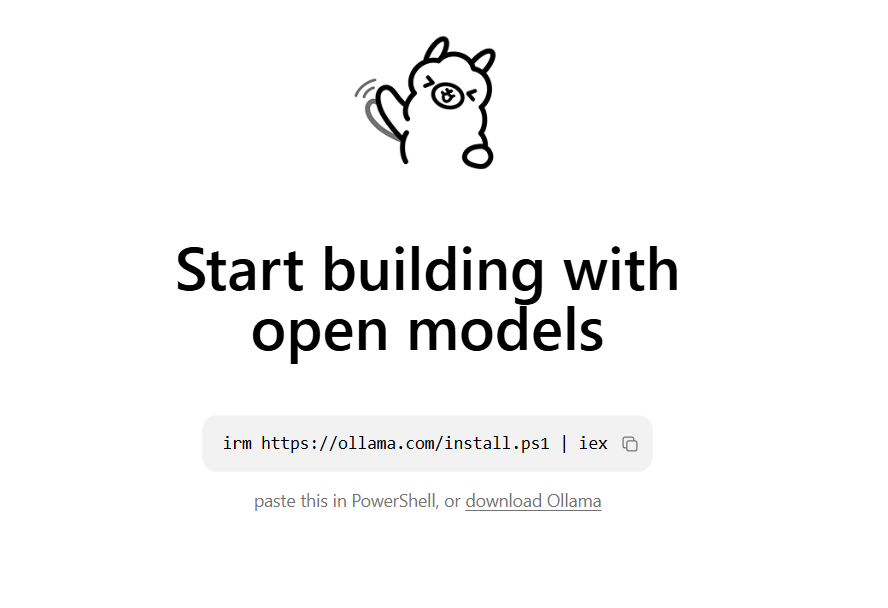
Ollama is an open-source tool that lets you download, manage, and run large language models on your own hardware, with almost no setup friction.
The best analogy? If Docker made containers easy to run, Ollama makes AI models easy to run.
Before Ollama, running a local AI model meant wrestling with Python dependencies, CUDA drivers, model weights scattered across different repositories, and configuration files that assumed you had a PhD. It was doable, but painful.
Ollama wraps all of that complexity into a clean CLI. You run one command, it handles the rest.
It became popular fast because it solved a real problem: getting models running quickly, on normal hardware, without a painful setup process.
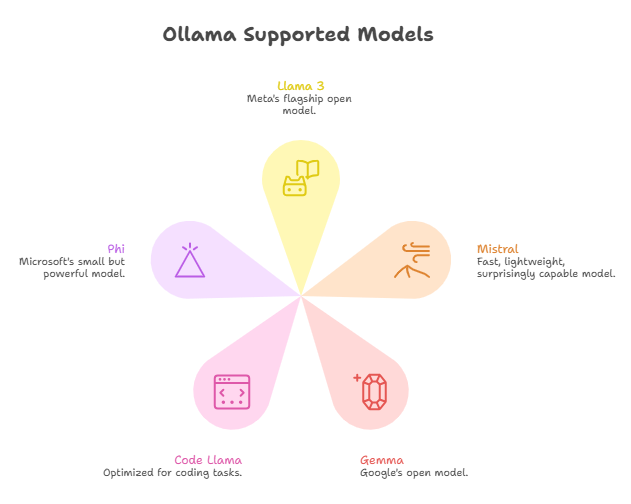
Models Ollama supports (among many others):
Llama 3: Meta’s flagship open model
Mistral: Fast, lightweight, surprisingly capable
Gemma: Google’s open model
Code Llama: Optimized for coding tasks
Phi: Microsoft’s small but powerful model
What Hardware Do You Need?
Here’s where things get interesting: you don’t need a beefy machine.
Minimum requirements:
8GB RAM
Modern CPU (Intel, AMD, or Apple Silicon)
~4GB free disk space per model
Recommended for a smoother experience:
16GB RAM or more
Apple Silicon (M1/M2/M3) or a dedicated GPU
SSD storage
The truth is, smaller models (7 billion parameters) run surprisingly well on standard laptops. Apple Silicon Macs are particularly well-suited because of their unified memory architecture. An M2 MacBook Pro handles 7B models comfortably.
A GPU is optional but helpful. If you have one, Ollama will use it automatically for faster responses. No manual configuration needed.
Installing Ollama (Step-by-Step)
Installation is the easiest part.
Mac / Linux:
Open your terminal and run:
bash
curl -fsSL https://ollama.com/install.sh | sh
That’s it. The script downloads the binary, installs it, and starts the Ollama background service automatically.
Windows:
Head to ollama.com and download the Windows installer. Run it like any other app. Ollama will install and start running as a background service.
What happens during installation:
Ollama installs a lightweight background service that manages models and serves a local API. You’ll interact with it through the CLI or directly via HTTP, more on that in a moment.
After installation, verify everything is working:
Bash
ollama --version
You should see a version number. If you do, you’re ready to run your first model.
Running Your First Model
Here’s where the magic happens.
To download and run Llama 3, type:
bash
ollama run llama3
The first time you run this command, Ollama downloads the model (around 4GB for the default version). After that, it loads into memory and you’ll see a prompt, just like ChatGPT, but running entirely on your machine.
Things to try right away:
Write a Python function for quicksort
Explain neural networks like you’re talking to a 12-year-old
Summarize the key ideas of the book Atomic Habits
To exit the chat, type /bye.
Ollama as a Local API Server
Here’s where it gets powerful for developers.
When Ollama is running, it automatically starts a local API server at:
http://localhost:11434
This means you can make HTTP requests to it, exactly like you would to the OpenAI API, but locally.
A quick test with curl:
bash
curl http://localhost:11434/api/generate \
-d ‘{
“model”: “llama3”,
“prompt”: “What is machine learning in one sentence?”,
“stream”: false
}’
This opens up a huge range of possibilities:
Python apps using the requests library or the official Ollama Python package
Node.js apps calling the local endpoint
LangChain: Ollama has native LangChain integration
AI agents that use local models as their reasoning engine
VS Code extensions and local tools that call the API in the background
The local API is compatible with the OpenAI API format (with some adapters), which means many tools designed for OpenAI can be pointed at your local Ollama instance with minimal changes.
Using Ollama with Python
Here’s a minimal Python example to get you started:
python
import requests
response = requests.post(
“http://localhost:11434/api/generate”,
json={
“model”: “llama3”,
“prompt”: “Explain recursion in simple terms.”,
“stream”: False
}
)
data = response.json()
print(data[”response”])
The response comes back as a JSON object. The response key holds the model’s reply as a plain string.
For a cleaner experience, you can also install the official Ollama Python library:
bash
pip install ollama
Then use it like this:
python
import ollama
result = ollama.chat(
model=”llama3”,
messages=[{”role”: “user”, “content”: “What is a transformer model?”}]
)
print(result[”message”][”content”])
Clean, simple, and runs entirely locally.
Best Models to Try First
Not all models are created equal. Here’s a quick guide to where to start:
Llama 3 (8B): Best all-around choice for most tasks. Strong reasoning, good instruction following, solid performance on consumer hardware.
Mistral (7B): Faster and lighter than Llama 3. Great when you want quick responses and don’t need max capability.
Phi-3 (3.8B): Surprisingly powerful for its small size. Runs well even on machines with less RAM. Good for simple tasks and fast iteration.
Code Llama (7B): Purpose-built for coding. If you’re using local AI as a coding assistant, start here.
Start with Llama 3 if you’re unsure. It’s the safest default.
Real Use Cases
What are people actually building with local AI?
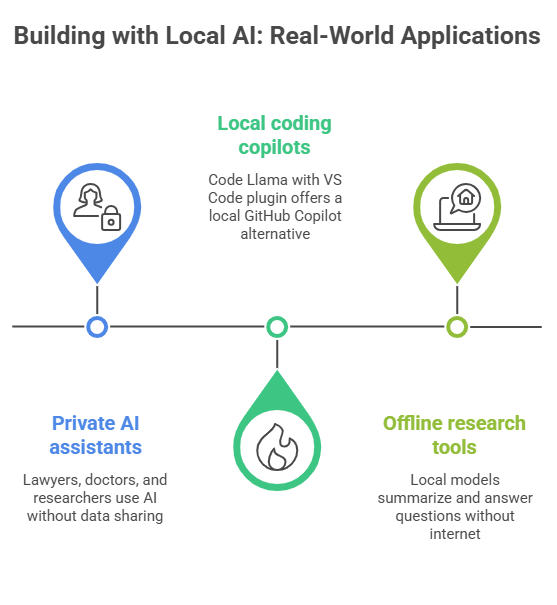
Private AI assistants. Lawyers, doctors, and researchers who work with sensitive data can get AI assistance without data ever touching a third-party server. A lawyer drafting a brief can query a local model about legal concepts without worrying about confidentiality.
Local coding copilots. Pair Code Llama with a VS Code plugin and you have a local GitHub Copilot alternative. No subscription, no data sharing, faster responses for simpler suggestions.
Offline research tools. Feed a local model a corpus of documents and use it to summarize, extract, or answer questions, entirely offline. Useful for fieldwork or environments with restricted internet.
The common thread: control and privacy.
The Honest Limitations
Local AI is powerful, but let’s be real about the trade-offs.
Smaller models are less capable than GPT-4. A 7B local model is impressive, but it won’t match GPT-4 on complex reasoning, long context, or nuanced tasks. Know the ceiling.
Speed is hardware-dependent. On a mid-range laptop without a GPU, responses can be noticeably slow for longer outputs.
Large models need serious RAM. Running 70B parameter models requires 64GB+ RAM or a high-end GPU. It’s possible, but not for everyone.
That said: local AI is improving fast. Models are getting more capable at smaller sizes every few months.
Closing Thought
Running AI locally changes something about how you think about it.
When you’re calling an API, AI feels like a service: something out there, in the cloud, that you pay to access. When you run it locally, something shifts. The model is yours. It’s running on your machine. You see the tokens generating in real time, feel the RAM being used, notice how the quantization affects quality.
It becomes less abstract. More tangible. More yours.
For anyone who’s been building with AI but always through an API, spinning up Ollama this week is worth the hour. Not because it’ll replace your cloud setup, but because it’ll change how you understand what you’re working with.
Run a model. Break something. Build something. See what happens.
We’ve spent a decade moving everything to the cloud. Now that the power is back on your desk, what's the first thing you're going to reclaim?
Subscribe now if this was useful, share it with a developer friend who hasn’t tried local AI yet. They’ll thank you.